
Getting around Ruwa
The Home screen, the main navigation, and the application menus.
Before a project is open, Ruwa is mostly the Home screen and the menus in the top bar. This page is the tour, so you know where things are before you need them.
First launch
The one-time setup runs before you ever see Home. It's covered in Installation.
The Home screen
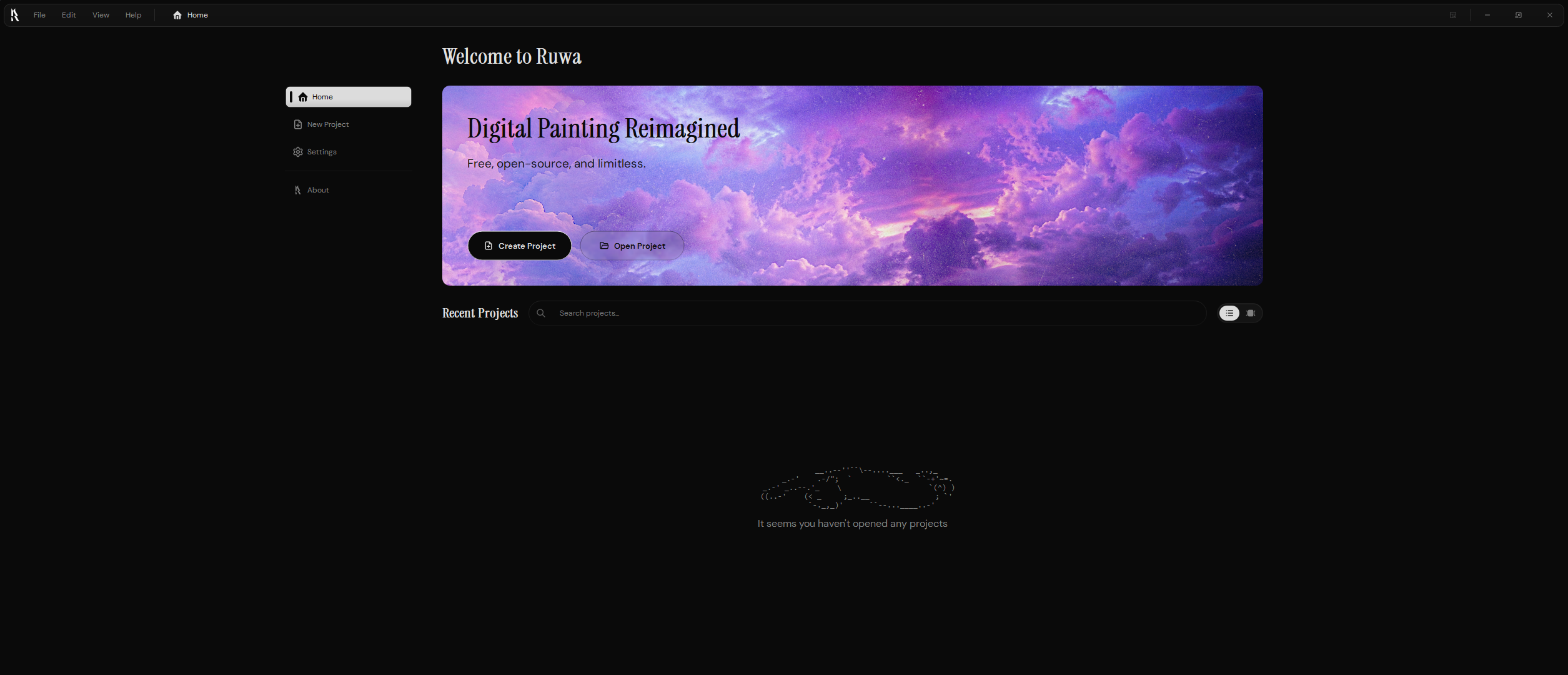
Home is where work starts. The welcome banner gives you the two things you'll want most:
Create Project
Open the New Project screen and set up a fresh canvas.
Open Project
Pick an existing Ruwa project from your computer and keep going.
Recent projects
Everything you've opened lately shows up under the banner, so you rarely have to go hunting through folders.
The search field filters the list by name, and the controls next to it change how projects are displayed — handy once the list gets long. Haven't opened anything yet? You'll see an empty state here instead.
Main navigation
The left-hand navigation connects the screens you use between painting sessions:
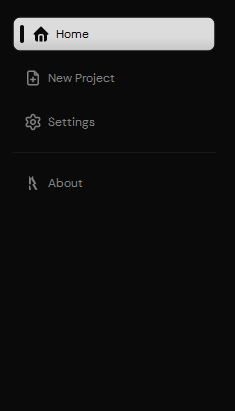
- Home
Back to the welcome banner and your recent projects.
- New Project
Pick a preset or set the canvas up by hand.
- Settings
Application preferences, with a search field so you can find one.
- About
Your Ruwa version, build details, credits, and project links.
Application menus

The top bar follows you everywhere in Ruwa and holds four menus:
- File — project and file actions.
- Edit — editing commands.
- View — interface and display controls.
- Help — help and application information.
What's inside them shifts depending on where you are. On Home you'll see fewer commands than you will with a project open, because half of them need a canvas to act on.
Next
Ready to make something? Your first painting takes you from this screen to a saved project.