
Navigator panel
View the complete artwork and navigate the canvas from one panel.
The Navigator panel shows the complete composited artwork and the part that is currently visible in the Canvas panel. Use it to move quickly between distant areas without changing the project contents.
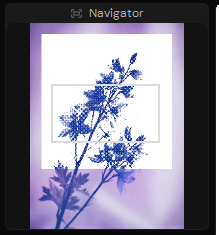
The outline marks the area currently visible in the Canvas panel.
Navigate from the preview
| Action | Control |
|---|---|
| Center the view on a point | Click that point with the mouse |
| Pan the view | Drag across the preview with the mouse or a stylus |
| Zoom around a point | Place the mouse pointer over it and scroll the wheel |
You can start a drag anywhere in the preview; it does not need to begin inside the viewport outline. Changes made in Navigator are immediately reflected in the Canvas panel.
For keyboard shortcuts, navigation tools, and gestures used directly over the canvas, see Navigate the canvas.
Read the viewport outline
The viewport outline follows the current canvas view:
- Panning moves the outline across the preview.
- Zooming changes its size.
- Rotating the canvas turns it into a rotated shape.
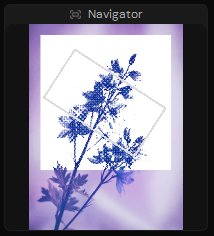
A rotated outline indicates that the canvas view is rotated.
The outline also stays synchronized when you navigate with the Hand, Zoom, or Rotate View tools, keyboard controls, or the Joystick.
Preview updates and canvas bounds
Navigator displays the combined result of all visible layers, not only the selected layer. The preview updates after the artwork changes. While you are drawing, Ruwa waits until the stroke is complete before refreshing the preview, so the panel does not interrupt the stroke.
For a regular canvas, the preview represents the complete document bounds. For an infinite canvas, Navigator uses the current content bounds, allowing the overview to follow artwork that extends beyond the initial area.
Navigator in Export Mode
Navigation from the preview is unavailable in Export Mode. Return to the editing workspace to pan, center, or zoom the canvas from Navigator.
The Navigator panel can be shown, hidden, docked, or moved like the other workspace panels. See Panels for the shared panel controls.