
Canvas widgets
Keep common tool, brush, and navigation controls close to the canvas.
Canvas widgets are controls placed over the Canvas panel. They keep common actions close to the artwork without taking up space in the docked panels.
Ruwa provides three Canvas widgets:
| Widget | Purpose | Can be moved |
|---|---|---|
| Tool bar | Common commands and settings for the active tool | No |
| Brush Control | Brush size, opacity, selection, and quick settings | Yes |
| Joystick | On-canvas controls for panning, rotating, and zooming | Yes |
Show and hide Canvas widgets
Open View → Canvas Widgets, then select a widget to show or hide it. A check mark indicates that the widget is visible.
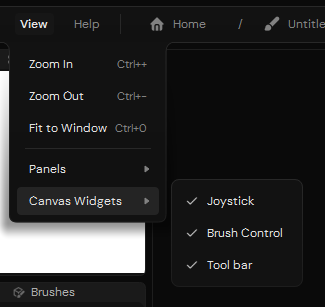
Each Canvas widget can be shown or hidden independently.
You can also open a widget's context menu and select Hide widget. Use the View menu to bring a hidden widget back.
Brush Control and Joystick can be dragged by their handles. They remain inside the Canvas panel and snap to its edges. The Tool bar stays fixed at the top center of the panel.
Widget visibility and position are stored as part of the current workspace layout. See Workspace layouts for details about saving and switching complete arrangements.
Tool bar
The Tool bar combines controls that remain useful while the surrounding panels are hidden or rearranged.

The Tool bar with the Brush tool active
The controls are divided into three areas:
- The left side contains Undo, Redo, Mirror Horizontally, and Mirror Vertically.
- The center displays quick settings for the active tool.
- The right side copies a rendered image of the canvas to the clipboard.
The center changes when you select another tool. It contains only the settings that are useful to adjust without opening another panel.
| Active tool | Quick settings |
|---|---|
| Brush | Erase with the current brush, Hardness, and Flow |
| Eraser | Hardness and Flow |
| Lasso or Lasso Fill | Stabilization |
| Blur | Intensity |
| Smudge | Intensity and Pickup |
| Liquify | Push, Twirl, Bloat, or Pucker mode, and Strength |
| Canvas Resize | Old and new canvas size |
Some tools do not require quick settings, so the center can remain empty.

Selecting Smudge replaces the Brush settings with Intensity and Pickup.
The mirror buttons change only the way the project is displayed. They do not flip the project pixels or affect the exported image. See Navigate the canvas for more information.
Brush Control
Brush Control keeps the most frequently adjusted brush properties next to the artwork. From top to bottom, it contains:
- A handle for moving the widget.
- A slider for brush size.
- A button that opens the compact Brushes and Settings popup.
- A slider for brush opacity.
Dragging the size or opacity slider displays a floating preview. It shows the current size in pixels or opacity as a percentage, along with a live preview of the brush tip.
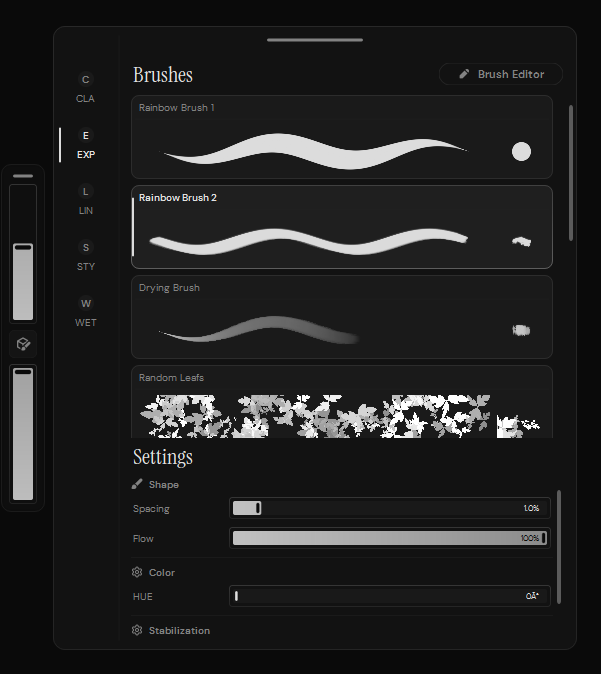
The center button provides brush selection and frequently used settings without requiring the docked brush panels.
The popup provides access to brush packs, brush presets, the Brush Editor, and the settings marked for quick access. Use its handle to move the popup independently when it covers part of the artwork.
Joystick
Joystick provides panning, rotation, and zoom controls directly on the canvas. It works with touch, a stylus, or a mouse, but is primarily designed for pen-display tablets where keyboard navigation may be inconvenient.
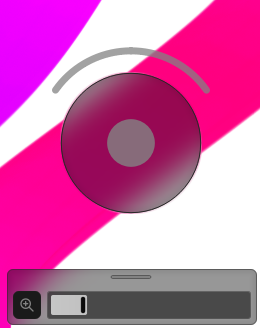
The Joystick combines pan and rotation controls with a separate zoom panel.
- Drag the center control away from its resting position to pan. Moving it farther from the center increases the panning speed.
- Drag along the outer arc to rotate the canvas view.
- Select Zoom to Fit in the zoom panel to center the canvas and fit it into the available space.
- Drag the horizontal slider to change the zoom level.
The rotation arc and zoom slider follow the current canvas view, including changes made with other navigation controls.
Drag the handle on the zoom panel to move the complete widget. If you move it between the upper and lower halves of the Canvas panel, Ruwa automatically places the zoom panel on the more accessible side of the Joystick.
Joystick changes only the canvas view. For mouse gestures, keyboard shortcuts, and the dedicated navigation tools, see Navigate the canvas.