
Project tabs
Switch between and manage multiple open Ruwa projects.
Ruwa can keep several projects open in the same window. Each project appears in the top bar and keeps its own canvas, layers, history, and workspace state while you work in another tab.

Select Home to return to the start screen, or select a project to continue working on it.
Read the tab bar
The active project uses brighter text and an accented icon. Inactive projects remain open but appear muted.
An asterisk (*) after a project name indicates unsaved changes. Hover over a
project tab to reveal its close button.
Switch between projects
Select a project tab to activate it. You can also switch with the keyboard:
| Action | Default control |
|---|---|
| Activate the next tab | Ctrl + Tab |
| Activate the previous tab | Ctrl + Shift + Tab |
| Close the active tab | Ctrl + W |
| Close all tabs | Ctrl + Shift + W |
These are the default shortcuts and can be changed in Keyboard Shortcuts settings.
Customize and manage a tab
Open a project's context menu to change its presentation or close several projects at once.
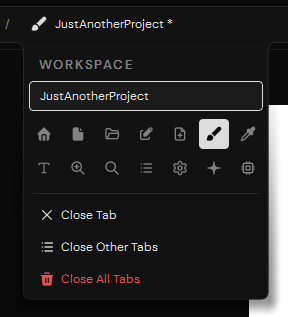
A project tab can use a custom display name and icon.
The context menu provides:
- A name field for changing the label displayed in the tab bar.
- A selection of icons for distinguishing projects visually.
- Close Tab for closing the selected project.
- Close Other Tabs for keeping only the selected project open.
- Close All Tabs for closing every open project.
The custom tab name and icon are stored as project metadata in the .rwf file.
Changing the tab name does not rename the project file on disk. Save the
project after changing either value if you want the customization to persist.
Close a project safely
If a project has unsaved changes, closing it displays a confirmation before the tab is removed.

- Save writes the latest changes, then closes the tab. If the project has
not been saved before, Ruwa first asks where to create its
.rwffile. - Don't Save closes the project and discards changes made since the last save.
- Cancel leaves the project open.
Close Other Tabs and Close All Tabs perform the same check for every modified project they would close.
For the difference between saving an editable project and exporting an image, see Save the project.