
Panels
Show, hide, and arrange the panels around the Ruwa canvas.
Panels group the tools and controls placed around the canvas. Each panel has a specific purpose, while its position and size can be adapted to the way you work.
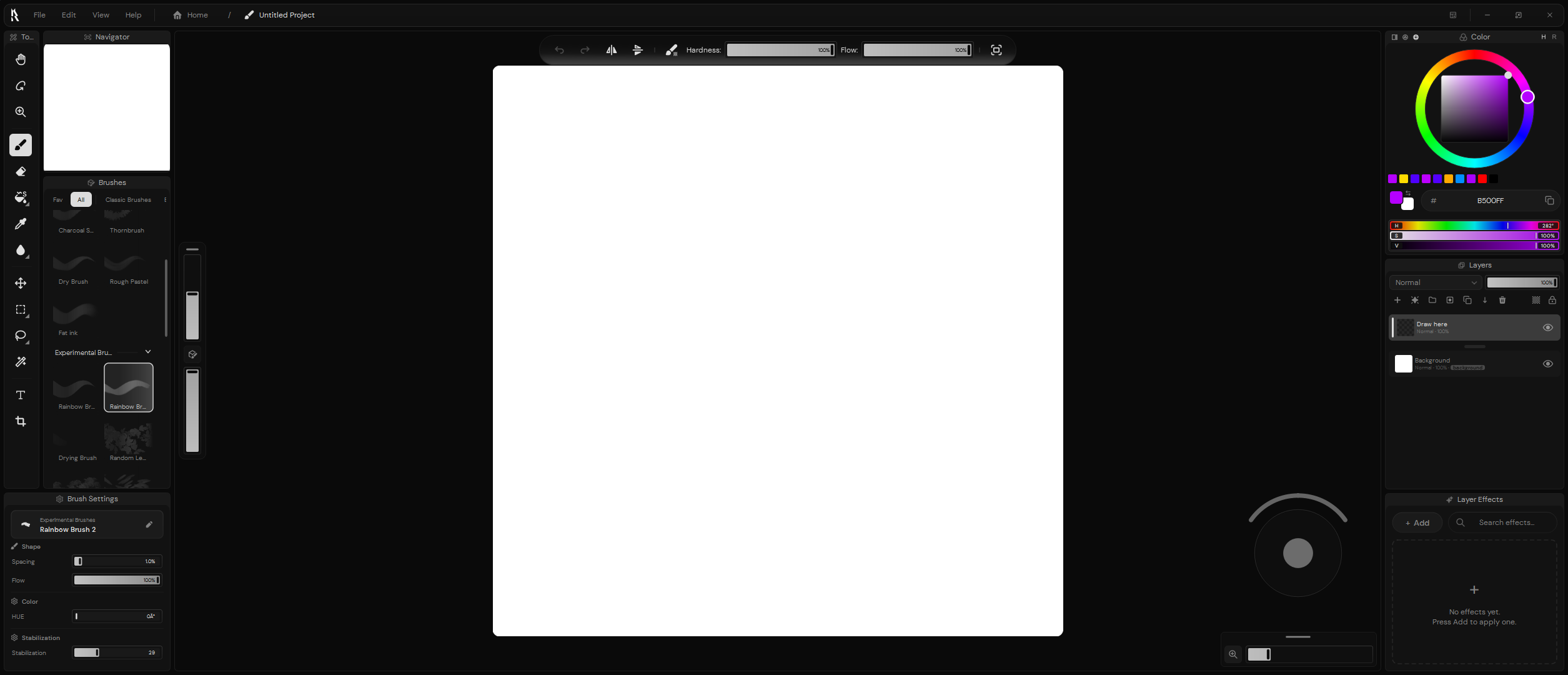
Panels are part of the workspace layout. Unlike Canvas widgets, they do not sit over the artwork.
Available panels
Open View → Panels to see every panel available in Ruwa.
| Panel | Purpose | Visible in the default layout |
|---|---|---|
| Tools | Select drawing, navigation, selection, and editing tools. | Yes |
| Brushes | Browse brush packs and select brush presets. | Yes |
| Brush Settings | Adjust the favorite settings of the selected brush. | Yes |
| Layers | Organize layers, groups, and masks, and adjust blend mode and opacity. | Yes |
| Layer Properties | Edit properties specific to the selected layer. | No |
| Layer Effects | Add and manage non-destructive effects for the selected layer. | Yes |
| Color | Select foreground and background colors. | Yes |
| Navigator | View the complete artwork and move around the canvas. | Yes |
This page covers the behavior shared by every panel: how to show, move, dock, and resize it. The controls inside the Navigator panel are documented on the Navigator panel page.
The Canvas panel stays available
The central Canvas panel uses the workspace layout but is not listed under View → Panels. It cannot be hidden like the surrounding panels.
Show and hide panels
Select a panel under View → Panels to show or hide it. A check mark indicates that the panel is currently visible.
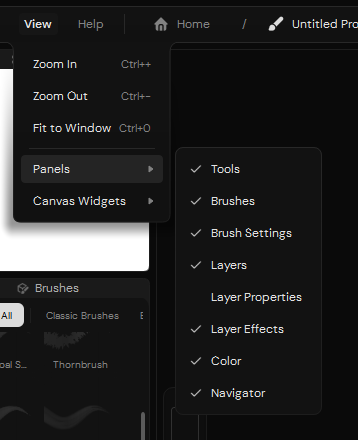
Every surrounding panel can be toggled independently.
Closing a panel hides it without removing its contents or changing the project. Use the same menu to bring it back.
Most panels also provide Close Panel in the context menu of their header. The Tools panel does not have this context-menu action, but it can still be hidden from the View menu.
Panel headers
A docked panel displays its icon and title in the header. The header of the panel that currently has focus appears brighter, while inactive panel headers are slightly muted.
Panel contents can react to the current tool or selection. For example, Brush Settings follows the selected brush, while Layer Properties and Layer Effects follow the selected layer. An empty state usually means that the panel does not currently have a compatible item to display.
Move, dock, and resize panels
Drag a docked panel by its header to change its position. Ruwa displays possible drop areas as you move it:
- Drop it beside the canvas or another panel to add it to that part of the layout.
- Drop it away from a docking area to leave it floating over the workspace.
- Drag the separator between docked panels to redistribute their available width or height.
Double-click a panel header to switch between docked and floating states.
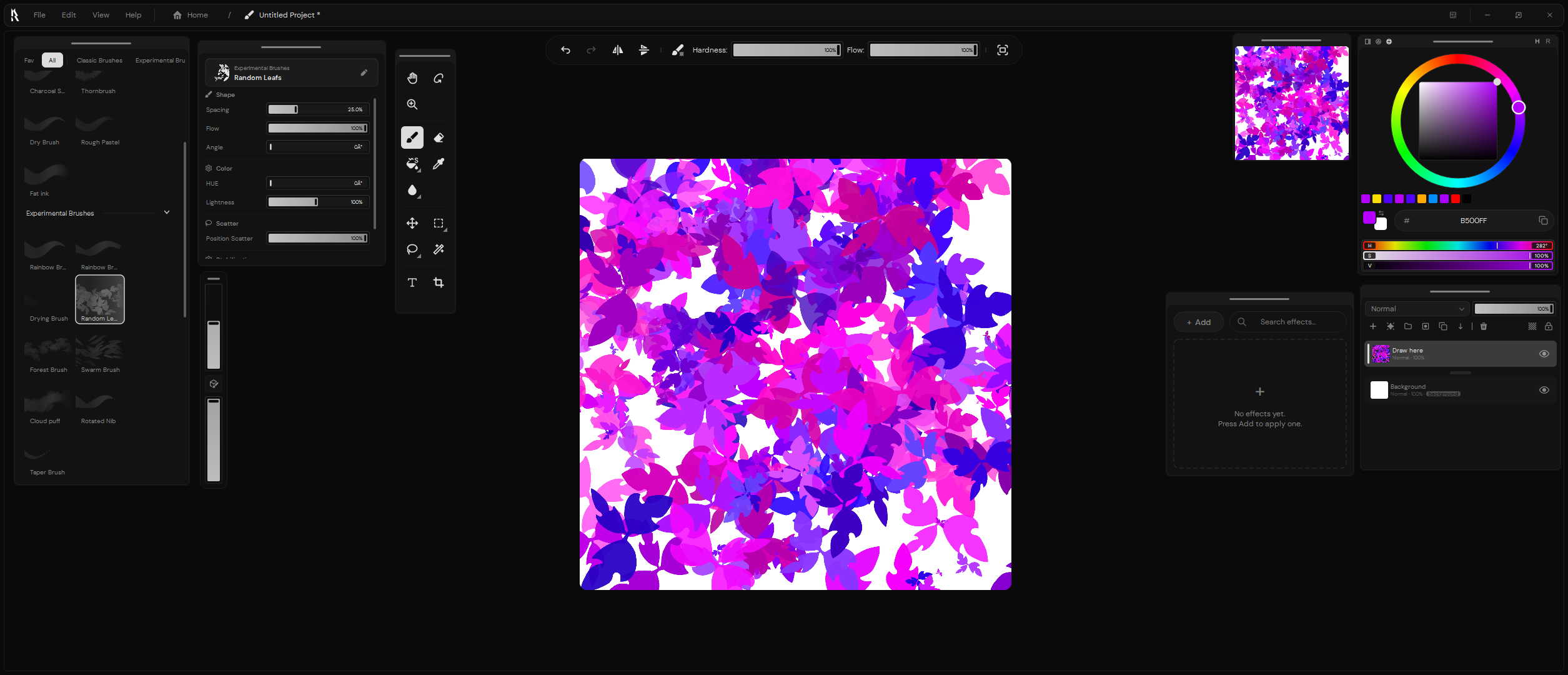
Floating panels can be placed independently without dividing the docked layout.
When a panel is floating, its icon and title are replaced by a handle. Drag the handle to move the panel. If resizing is enabled, drag an edge or corner to change its dimensions.
Panel context menu
Open the context menu from a panel header to change how that panel behaves.
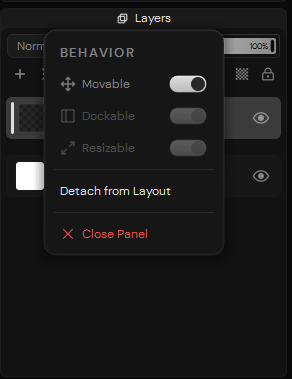
A docked panel can be detached from the layout.
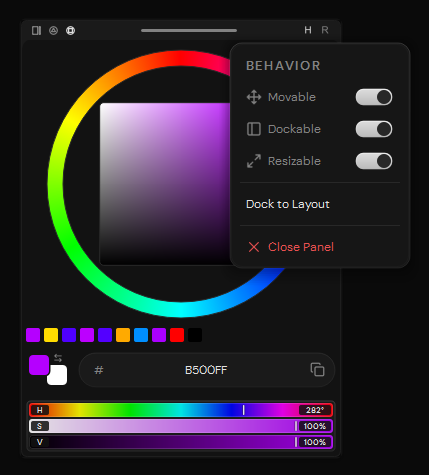
Docking and resizing options become available while a panel is floating.
| Option | Effect |
|---|---|
| Movable | Allows the panel to be repositioned. |
| Dockable | Allows a floating panel to be attached to the docked layout. |
| Resizable | Allows a floating panel to be resized from its edges and corners. |
| Detach from Layout | Turns a docked panel into a floating panel. |
| Dock to Layout | Returns a floating panel to the docked layout. |
| Close Panel | Hides the panel until it is shown again from the View menu. |
Dockable and Resizable apply only to floating panels, so they are disabled in the context menu of a docked panel.
Panel positions, sizes, visibility, and behavior are part of the workspace arrangement. See Workspace layouts to learn how complete arrangements are stored and restored.