
Save the project
Keep the editable .rwf project and export an image from it.
Save the painting as a .rwf project before you close it. That file holds the
layers, the effects, the canvas settings, and everything else you'd need to pick
the work back up.
An exported PNG, JPEG, or WebP holds the picture. It doesn't hold the project. Keep both.
Save for the first time
- File → Save, or
Ctrl+S. - Choose where it goes and give it a name.
- Select Save.
Ruwa writes a .rwf. Forget to type the extension and it adds one for you.
After that first save, File → Save or Ctrl + S writes straight to the
same file.
Save once, then relax
Autosave can only update a project that already has a name and a location on disk. A brand-new project has neither, so save it by hand once before you count on autosave.
Save under another name
File → Save As... or Ctrl + Shift + S writes the project somewhere
else, or under a different name.
Useful right before you try something drastic and want the old version intact.
Export a finished image
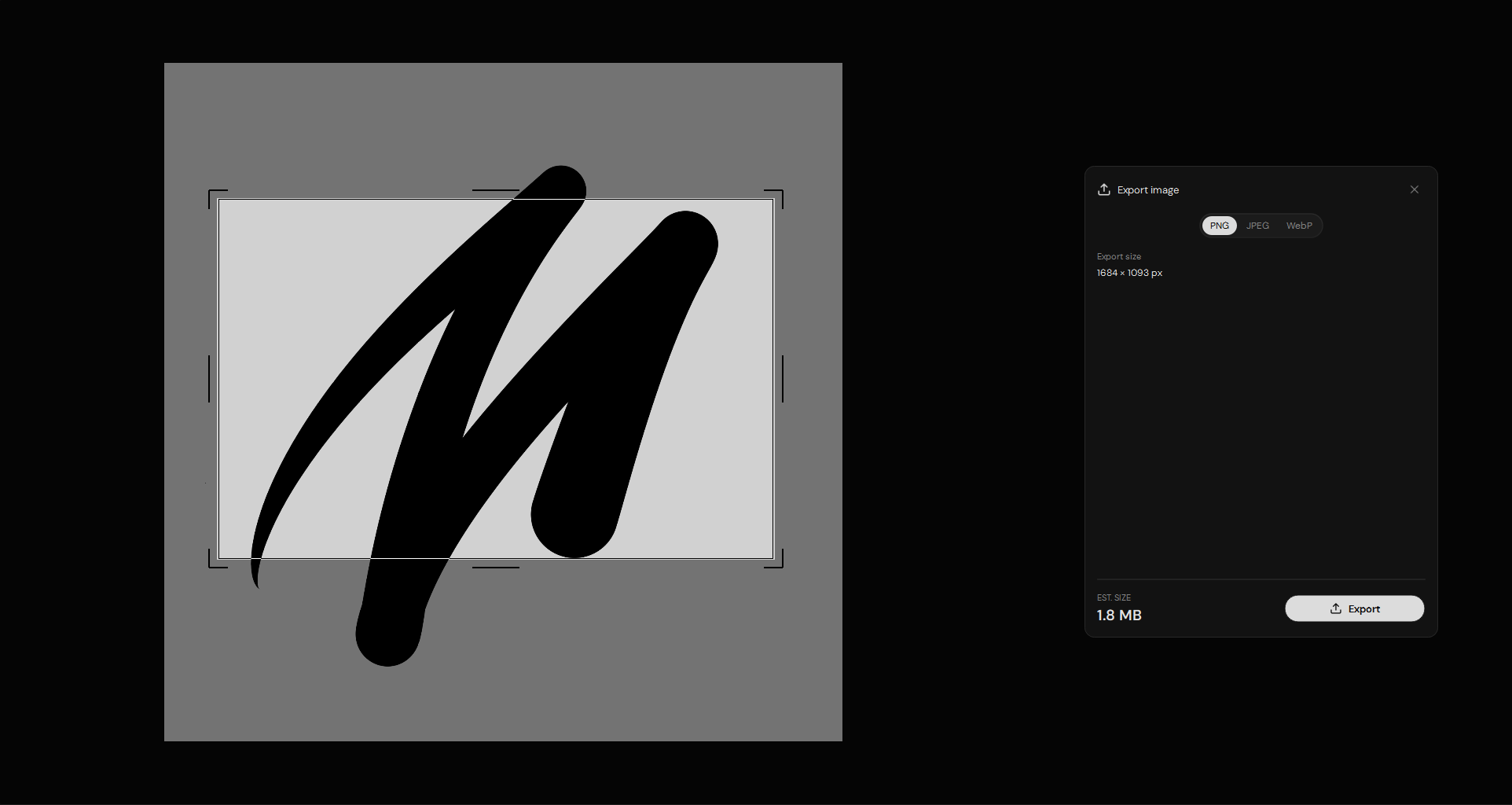
File → Export... drops you into export mode. The highlighted frame is what ends up in the image — move it or resize it if that's not the crop you want.
Three formats:
| Format | When to use it |
|---|---|
| PNG | The default answer for finished artwork. |
| JPEG | Compressed, with a quality setting you control. |
| WebP | Small files, mainly for the web. |
Then:
- Check the highlighted area.
- Pick PNG, JPEG, or WebP.
- On JPEG, set Quality.
- Glance at the export dimensions and estimated file size.
- Select Export, then pick a name and a location.
Just need a PNG and nothing else? File → Fast Export as PNG skips the format panel and goes straight to the save dialog.
Hang on to the .rwf
Exporting makes a separate image for sharing or for another app. It's not a
backup of your project. If you might ever edit the painting again, keep the
.rwf.